> For the complete documentation index, see [llms.txt](https://manual.minimal.audio/llms.txt). Markdown versions of documentation pages are available by appending `.md` to page URLs; this page is available as [Markdown](https://manual.minimal.audio/current-manual/sound-engine/sampler-engine.md).
# Sampler Engine
***
### Overview
Current’s sampler can be used to play loops, one-shots, noise, and any samples from the Stream or your personal library.
It includes an advanced time-stretching algorithm that allows you to easily adjust the tempo of loops and other sounds to fit into your projects. This makes it well-suited to serve as the center of a patch, as well as a source for layering anything that is needed.
***
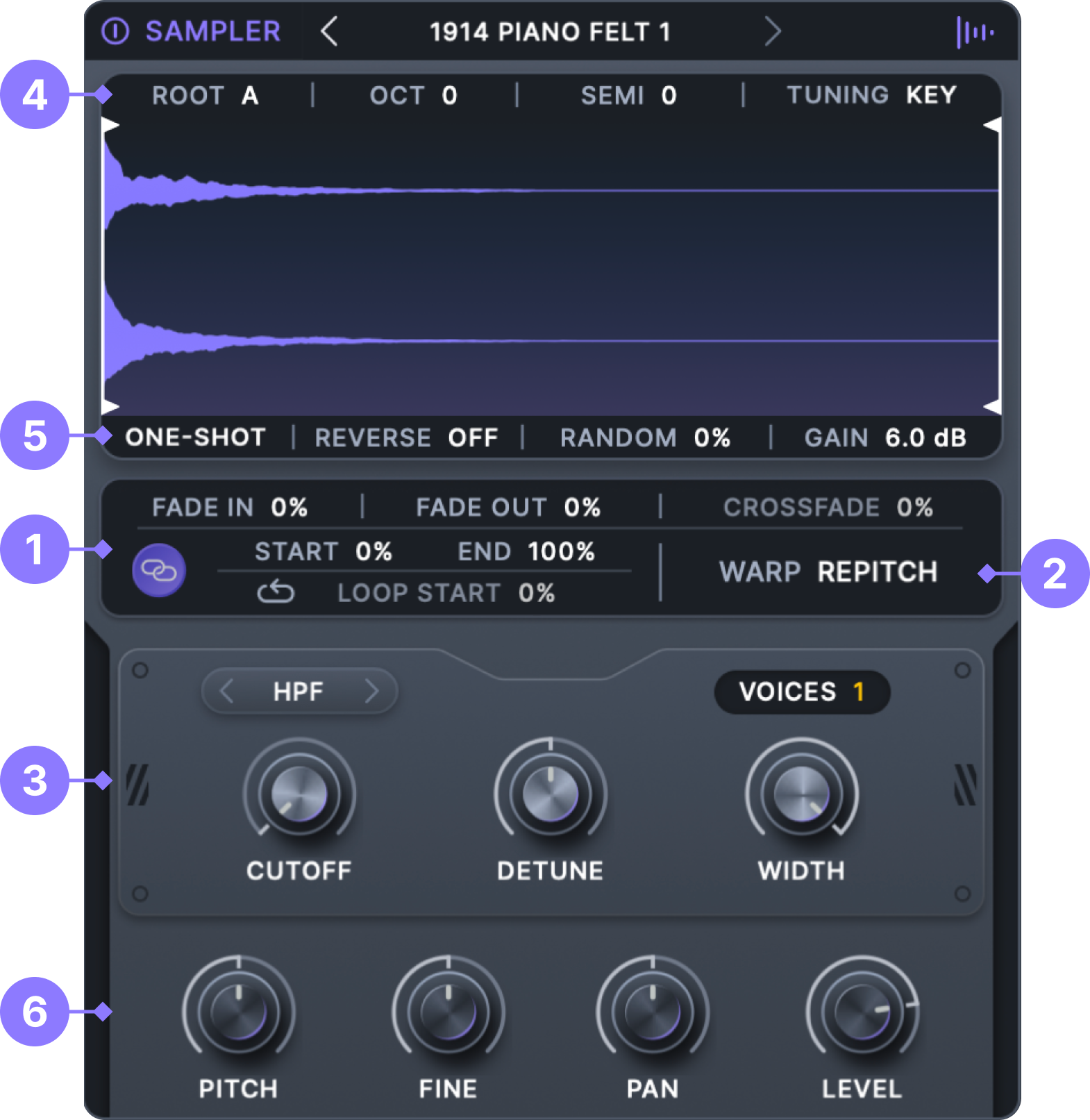
### 1. Sample Controls
**Fade In.** Set the percentage of the sample that will fade in when a note starts.
**Fade Out.** Set the percentage of the sample that will fade out before the sample ends. Note that this is only available in one-shot mode.
**Crossfade.** Set the amount of crossfade applied when the sample loops. Note that this is only available in the loop playback modes.
**Start.** Set the sample's start point.
**End.** Set the sample's end point.
**Loop Start.** Set the sample's loop start point. This can be set independently of the primary start by toggling the **Start Link** button.
**Start Link.** When activated, the loop start and primary start will be linked. Otherwise, each one can be set independently.
***
### 2. Sampler Modes
**Warp Mode**
Choose between two sampling modes, each with a different set of features.
* **Repitch.** In this mode, the speed of samples changes as their pitch changes, similar to classic samplers. Unison controls are also available in this mode, allowing for densely layered samples.
* **Flex.** This mode utilizes a high-quality time-stretching algorithm to maintain the original sample's timing, regardless of pitch. This time stretching can be manipulated to produce a variety of interesting effects.
***
### 3. Flex & Repitch Controls
The sampler includes two modes that are ideal for different use cases.
**Flex Mode**
Flex mode provides high-quality time and pitch manipulation, making it the ideal choice for samples where you want to adjust playback speed and pitch independently—such as changing the tempo of a loop without affecting its pitch.
When using **Flex** mode, the following controls become available:
1. **Source Material.** Choose from three time-stretching modes that are tuned for specific types of samples.
2. **Source BPM.** Set the BPM of the source sample. Setting the BPM to that of the currently loaded sample ensures that the sample is correctly stretched to match your project. Note that this is set automatically when loading factory content.
3. **Flex Speed.** Set the playback speed of the sample independently of its pitch.
4. **Speed Mode**
* **Free.** This mode allows you to freely adjust the speed, creating totally fluid time-stretching effects.
* **Ratio.** In this mode, **Speed** will be locked to a whole ratio, allowing for quick and precise time stretching.
***
**Repitch Mode**
Repitch mode offers classic sample playback behavior, where playback speed and pitch are interconnected. Unison controls are also accessible in this mode.
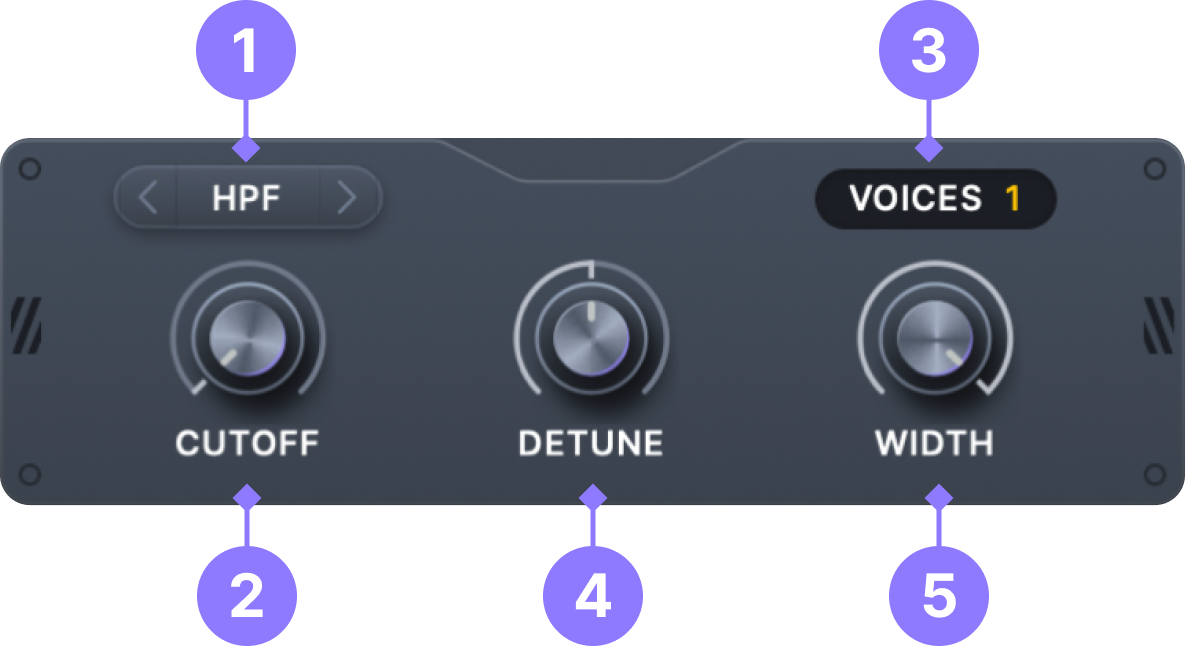
When using **Repitch** mode, the following controls become available:
1. **Filter Mode.** Select a basic filter type that the sampler will be sent through.
2. **Filter Cutoff.** Set the cutoff frequency for the filter.
3. **Unison Voices.** Set the number of unison voices. Adding more voices will create a denser sound, but it will also require somewhat more CPU.
4. **Unison Detune.** Adjust the amount of detuning between the unison voices.
5. **Unison Width.** Adjust the stereo width of the unison effect. This combines panning and phase manipulation to create a wide stereo image. Note that this will manipulate the stereo image even without detuning or phase randomization.
***
### 4. Tuning
**Root Note.** Set the current sample's root note to ensure that it accurately tracks notes on the keyboard. This setting is automatically configured when loading samples downloaded from the **Stream**.
**Octave.** Transpose the tuning of the sampler by one or more octaves.
**Tuning Mode**
This section explains how to set the tuning of the sampler.
* **Key**: This option provides standard key tracking behavior with variable semitone offset.
* **Fixed**: This option forces the sampler to be tuned to a specific note, regardless of the notes played on the keyboard.
* **Ratio:** This option allows you to shift the tuning up or down by multiplying or dividing it by a whole number ratio. It is particularly useful for FM synthesis and creating layers based on the harmonic series.
* **Scale:** Lock the tuning to the root note of the currently selected scale. Notes on the keyboard will be ignored, and the tuning will be transposed when the scale changes.
**Semitone (Key Tuning).** Transpose the tuning of the sampler in semitones.
**Fixed Note (Fixed Tuning).** Set the fixed note for the sampler, which will remain constant regardless of the notes played on the keyboard.
**Tuning Ratio (Ratio Tuning).** Set the tuning of the sampler by multiplying or dividing its current frequency with a whole number ratio.
**Scale Tuning Interval (Scale Tuning).** Set the fixed tuning interval relative to the currently selected scale to the right of the keyboard.
Octave, Semitone and Crossfade can be modulated by dropping a modulator onto them. See [Modulating Text Sliders](/current-manual/modulation/modulation-system.md#modulating-text-sliders).
***
### 5. Playback
**Playback Mode.** Choose how the sample will play back when triggered:
* **One-shot**. Play through the sample once and then stop.
* **Loop** →. Play through the sample and loop.
* **Loop** → ←. Play through the sample and loop back and forth.
**Sample Reverse.** Reverse the current sample.
**Random Start.** Adjust how much randomization is applied to the sample start position.
**Sample Gain.** Apply additional gain to the sample. This can be useful for matching the sample's level to the rest of your patch without having to use the **Level** control.
***
### 6. Generic Controls
**Pitch.** Adjust the pitch of the sampler in semitones.
**Fine.** Adjust the pitch of the sampler in cents.
**Pan.** Adjust the panning of the sampler.
**Level.** Adjust the gain of the sampler.
---
# Agent Instructions
This documentation is published with GitBook. GitBook is the documentation platform designed so that both humans and AI agents can read, navigate, and reason over technical content effectively. Learn more at gitbook.com.
## Querying This Documentation
If you need additional information that is not directly available in this page, you can query the documentation by asking a question.
Perform an HTTP GET request on the following URL with the `ask` and `goal` query parameters:
```
GET https://manual.minimal.audio/current-manual/sound-engine/sampler-engine.md?ask=&goal=
```
`ask` is the immediate question: it should be specific, self-contained, and written in natural language.
`goal` is what the user is ultimately trying to achieve, the reason they need the answer. Sharing it helps GitBook give you a better, more relevant answer. A goal is most helpful when it describes the outcome the user wants rather than restating the question. For example, with `ask=how do I create an API token`, a goal like `automate deployments from our CI pipeline` lets GitBook tailor the answer to that use case.
The response will contain a direct answer to the question and relevant excerpts and sources from the documentation.
Use this mechanism when the answer is not explicitly present in the current page, you need clarification or additional context, or you want to retrieve related documentation sections.